Best AI Prompt to Enhance Photos in 8K Quality

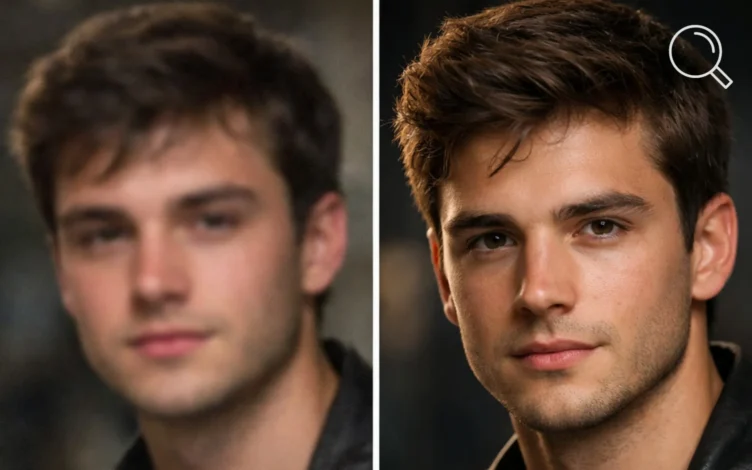
As AI image tools continue to evolve, it’s now possible to transform an ordinary photo into a cinematic ultra-HD version with resolution up to 8K. But true quality enhancement is not just about sharpness—it’s about preserving the original identity of the image without changing facial features, objects, or the overall scene.
In this article, we’re sharing a professional Arabic prompt built around one core principle: improve quality only. It is designed to preserve every original detail while delivering a polished high-end result, making it ideal for tools like MidJourney, Stable Diffusion, and similar platforms.
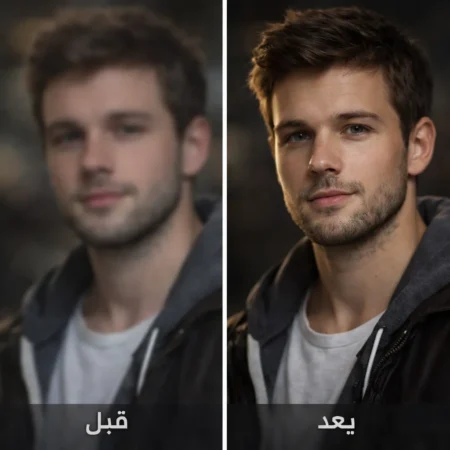
What Makes This Prompt Different?
This prompt is designed to achieve three key goals:
- Preserve the full identity of the original image
- Improve clarity, resolution, and fine detail only
- Create a cinematic professional image in true 8K quality
Professional Prompt for Image Enhancement (Copy and Use Directly)
Upgrade the uploaded image into a pristine, ultra-high-definition cinematic version while preserving the subject with absolute fidelity. The person's identity, facial anatomy, expression, body posture, clothing, accessories, environment, framing, and overall composition must remain completely unchanged. Do not modify, reinterpret, replace, or introduce any new visual elements.

Reconstruct and refine micro-level details including precise facial contours, authentic skin texture with naturally visible pores, individually defined hair strands, sharp and lifelike eyes, and clean, well-resolved edges throughout the image. Enhance dynamic range, contrast, and dimensional depth using balanced, studio-quality cinematic lighting that respects the original light direction and scene realism.

The result should feel like a professional high-end remaster - poster-level photorealism with accurate textures and zero stylistic alteration. Output in true 8K resolution with production-grade clarity comparable to ProRes quality.

Maintain strict source integrity improve quality only, change nothing else.
How to Use the Prompt Correctly
1. Choose the Right Tool
You can use this prompt with:
2. Upload the Original Photo
Upload the image you want to enhance inside the selected tool.
3. Recommended Settings (Important)
For the best results:
- Strength / Denoise: between 0.2 and 0.4
- CFG Scale: medium (7–10)
- Resolution: use the highest available output
- Upscaler: choose 4x or 8x if available
4. Avoid Common Mistakes
- Do not raise Denoise too high, or facial features may change
- Do not add extra prompts that alter the subject
- Avoid artistic styles if your goal is realism
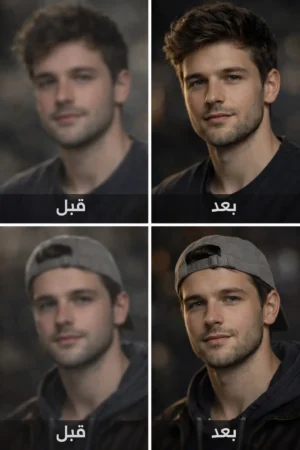
When Should You Use This Type of Prompt?
This prompt works especially well for:
- Restoring old portrait photos
- Upgrading social media images
- Creating professional photos without reshooting
- Enhancing product or content images
Final Thoughts
If you want to improve image quality to a professional level without losing identity or changing original details, this prompt is one of the strongest options available. The real advantage is smart enhancement without interfering with the source image, which helps the final result look natural and polished at the same time.
Disclaimer: We can not guarantee that the information on this page is 100% correct.